

Reading OSM datasets#
Once you have a PBF file, the OSM reader turns it into GeoPandas GeoDataFrames. This section shows how to initialise the reader, read the main OSM datasets (street networks, buildings, POIs, landuse, natural elements and boundaries), limit reading to a bounding box, and read historical data.
How to?
Initializing the Pyrosm OSM -reader object#
When using Pyrosm, the first step is to initialize a specific reader object called OSM that is available from the pyrosm library:
# Import the library
import pyrosm

# Print information about the basic usage of the `OSM` reader object
help(pyrosm.OSM.__init__)
Help on function __init__ in module pyrosm.pyrosm:

__init__(self, filepath, bounding_box=None, keep_metadata=True, complete_relations=False, keep_node_info=False, engine='out_of_core', workers=None, progress=None)
    Initialize self.  See help(type(self)) for accurate signature.
As we can see from the documentation, the OSM object accepts two parameters:
filepathwhich is the filepath to the PBF file (*.osm.pbf) which will be read (see info above how to get one), andbounding_boxwhich is an optional parameter that can be used to filter OSM data geographically from specific area (see here for further details)
The following shows how to initialize an OSM reader object using a test dataset that comes with Pyrosm, and which can be retrieved using a get_data function:
import pyrosm

# Get filepath to test PBF dataset
fp = pyrosm.get_data("test_pbf")
print("Filepath to test data:", fp)

# Initialize the OSM object
osm = pyrosm.OSM(fp)

# See the type
print("Type of 'osm' instance: ", type(osm))
Filepath to test data: .../site-packages/pyrosm/data/test.osm.pbf
Type of 'osm' instance:  <class 'pyrosm.pyrosm.OSM'>
As we can see, the test dataset lives in my case somewhere under the miniconda3 package,
and the type of the osm instance is something called pyrosm.pyrosm.OSM.
Notice that osm (lower case) is the actually initialized reader instance for the given PBF dataset that should always be used to make the calls for fetching different datasets from the OpenStreetMap PBF -file. Read further to see how things work.
Reading a large file can take a while. When a read runs longer than 2 seconds, a progress bar shows how much of the read is done, from 0 to 100 %, and the step it is in, such as “decoding the blocks” or “building the geometries”, and disappears when the read finishes; without a terminal, for example when the output goes to a log file, one line tells how long the read took. pyrosm.enable_logging("WARNING", progress=False) turns this off for every read, write, crop and download without turning on pyrosm’s log messages, and progress=False passed to OSM for that object only. A function given as progress instead is called as progress(done, 100) with the percentage of the read done.
To keep a record of what pyrosm does, for example in a pipeline, turn on logging with pyrosm.enable_logging(). Each OSM object then logs its options, and each read logs one line with the number of features and the seconds it took, such as get_network network_type=driving nodes=False features=171 seconds=0.036 for the test dataset. pyrosm.enable_logging("DEBUG") adds the time of each phase of a read, and pyrosm.enable_logging(to_file="pyrosm.log") writes the lines to a file instead of the screen. The messages go through Python’s logging module under the pyrosm logger, so an application that configures logging itself sees them as well.
Read street networks#
Pyrosm makes it easy to filter street networks using the get_network() method.
You can parse streets separately for different travel modes by specifying the
type of network using network_type -parameter.
The allowed network types are:
walking(default; OSMnxwalk)cycling(OSMnxbike)driving(OSMnxdrive)driving+service(OSMnxdrive_service; includes also the service roads, such as alleys and driveways)allall_public(leaves out the privately accessible ways)
The network types follow the way filters of OSMnx closely, and in most cases reading e.g. driving selects the same streets as OSMnx’s drive does from the Overpass API. Where the two differ, pyrosm follows OSM’s access rules: it leaves out a way tagged access=no unless a tag of the travel mode, such as foot=yes for walking, allows the use. driving also leaves out busways, ladders and trails (highway=busway, ladder and trail), which cars cannot use. The OSMnx name of a network type works as well.
The following shows how to read all drivable roads from OSM. Notice that from here on, we will import the OSM reader object directly from the package:
from pyrosm import OSM
from pyrosm import get_data

# Pyrosm comes with a couple of test datasets
# that can be used straight away without
# downloading anything
fp = get_data("test_pbf")

# Initialize the OSM parser object
osm = OSM(fp)

# Read all drivable roads
# =======================
drive_net = osm.get_network(network_type="driving")
drive_net.plot()
<Axes: >
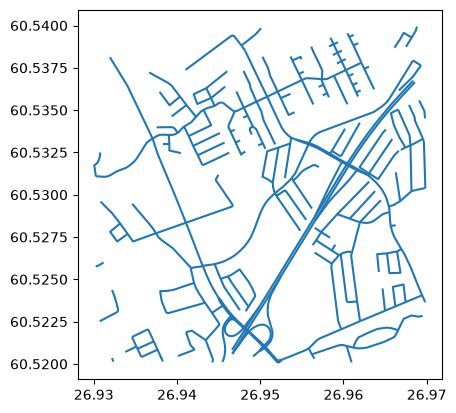
The network contains various information that is parsed from the OSM data, and includes length column that contains information about the length of the road in meters (scroll right):
drive_net.head(2)
| bridge | highway | int_ref | lanes | maxspeed | name | oneway | ref | surface | visible | id | timestamp | version | tags | osm_type | geometry | length | |
|---|---|---|---|---|---|---|---|---|---|---|---|---|---|---|---|---|---|
| 0 | NaN | secondary | NaN | 2 | 80 | Hurukselantie | NaN | 357 | asphalt | True | 4732994 | 1441800394 | 23 | {"name:fi":"Hurukselantie"} | way | LINESTRING (26.9431 60.5258, 26.94295 60.52596... | 1504.0 |
| 1 | NaN | secondary | NaN | NaN | NaN | NaN | yes | 170 | NaN | True | 5184588 | 1378828296 | 7 | NaN | way | LINESTRING (26.94778 60.52231, 26.94717 60.522... | 242.0 |
Notice that each way in the network is one row with a LineString geometry through the way’s nodes, as the way is in OSM. However, this differs if reading nodes and edges: in that case each road segment is represented as a separate row in data (to improve connectivity).
Hint
It is also possible to export network to routable graphs in various formats using to_graph() function (new in version 0.6.0). Read more from “Export street networks to graph -section”.
Understanding the “osm_type” -column values
pyrosm will create a column osm_type to the result which can contain values node, way or relation. These correspond to the three basic components of OpenStreetMap’s conceptual data model of the physical world:
nodes (points in space),
ways (linear features and area boundaries),
relations (sometimes used to explain how other elements work together).
Hence, the “way” values in osm_type column might not necessarily represent only LineString features, as they can also be Polygons or LinearRings.
If you want to know the geometry types of your data, you can access such information with geopandas by calling (gdf here represents a GeoDataFrame):
gdf["geometry_types"] = gdf.geom_type
Check an example here to see how to filter your GeoDataFrame based on specific geometry type.
Read buildings#
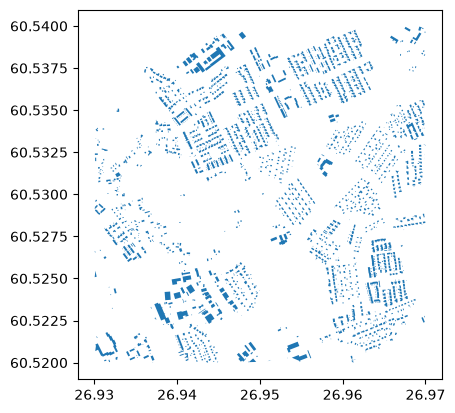
get_buildings() returns the buildings mapped as outlines: the ways and relations tagged building. With keep_nodes=True it also returns the buildings mapped as single nodes, as Points. Nodes tagged building=entrance or building=window mark a part of a building and building=no says that a feature is not one, so they are left out; get_data_by_custom_criteria({"building": True}) returns every node tagged building.
from pyrosm import OSM
from pyrosm import get_data
fp = get_data("test_pbf")
# Initialize the OSM parser object
osm = OSM(fp)
buildings = osm.get_buildings()
buildings.plot()
<Axes: >
Read Points of Interest#
# Read POIs such as amenities and shops
# =====================================
from pyrosm import OSM
from pyrosm import get_data
fp = get_data("helsinki_pbf")
# Initialize the OSM parser object
osm = OSM(fp)

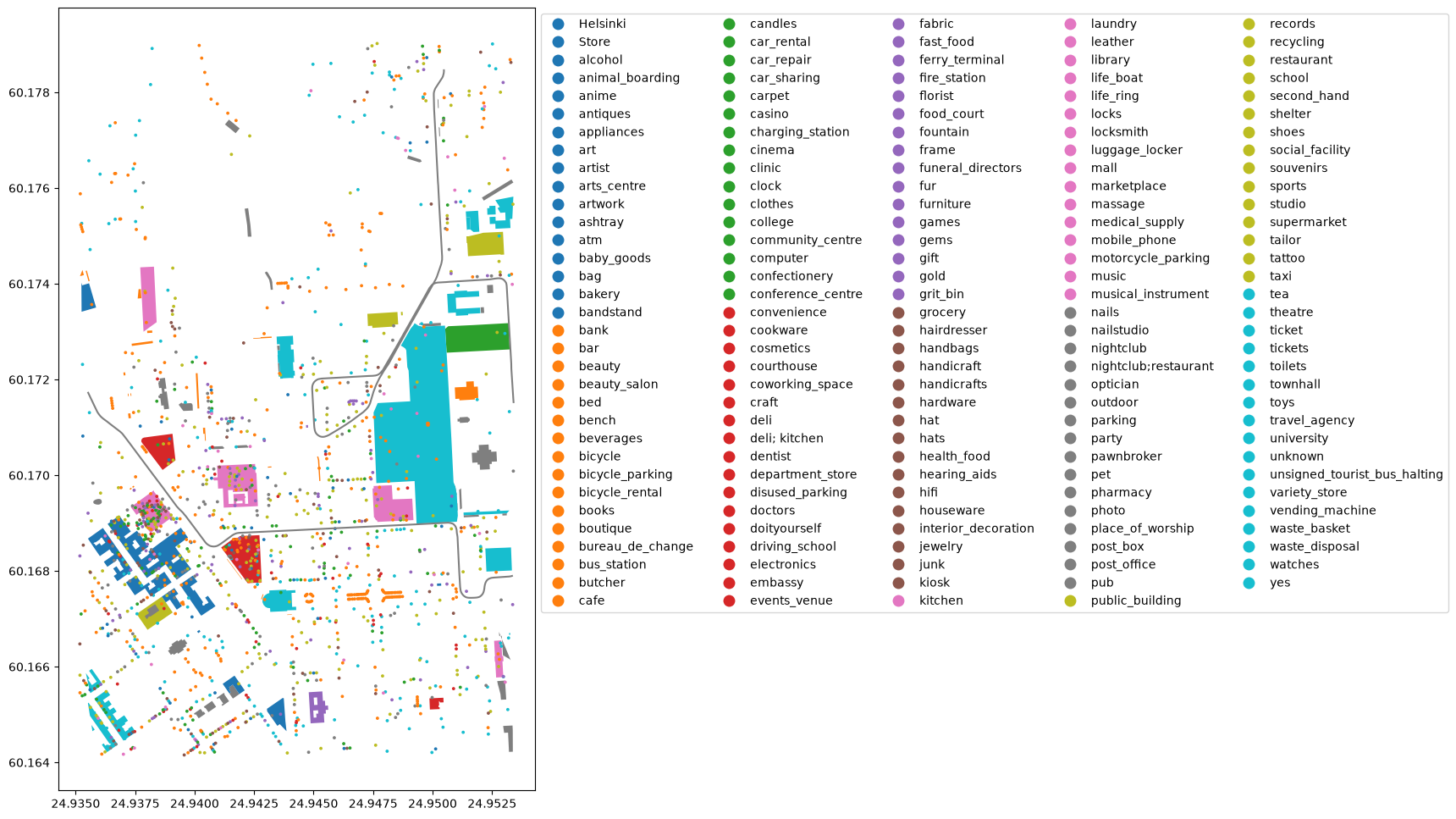
# By default pyrosm reads all elements having "amenity", "shop" or "tourism" tag
# Here, let's read only "amenity" and "shop" by applying a custom filter that
# overrides the default filtering mechanism
custom_filter = {'amenity': True, "shop": True}
pois = osm.get_pois(custom_filter=custom_filter)

# Gather info about POI type (combines the tag info from "amenity" and "shop")
pois["poi_type"] = pois["amenity"]
pois["poi_type"] = pois["poi_type"].fillna(pois["shop"])

# Plot
ax = pois.plot(column='poi_type', markersize=3, figsize=(12,12), legend=True, legend_kwds=dict(loc='upper left', ncol=5, bbox_to_anchor=(1, 1)))
Read landuse#
# Read landuse
# ============
from pyrosm import OSM
from pyrosm import get_data
fp = get_data("test_pbf")
# Initialize the OSM parser object
osm = OSM(fp)
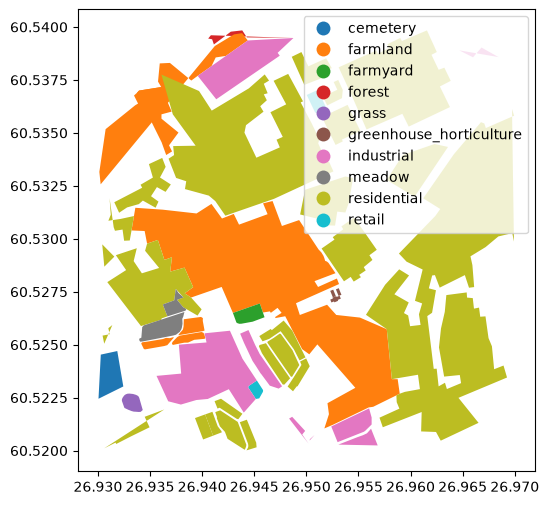
landuse = osm.get_landuse()
landuse.plot(column='landuse', legend=True, figsize=(10,6))
<Axes: >
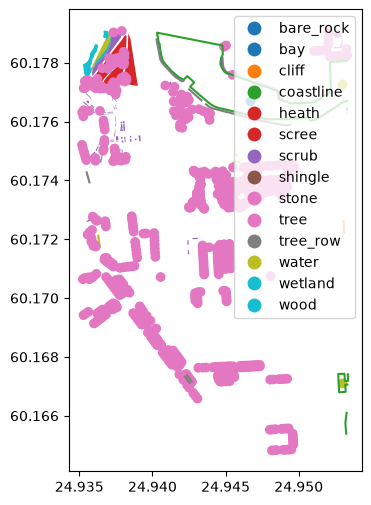
Read natural#
# Read natural
# ============
from pyrosm import OSM
from pyrosm import get_data
fp = get_data("helsinki_pbf")
# Initialize the OSM parser object
osm = OSM(fp)
natural = osm.get_natural()
natural.plot(column='natural', legend=True, figsize=(10,6))
<Axes: >
Read boundaries#
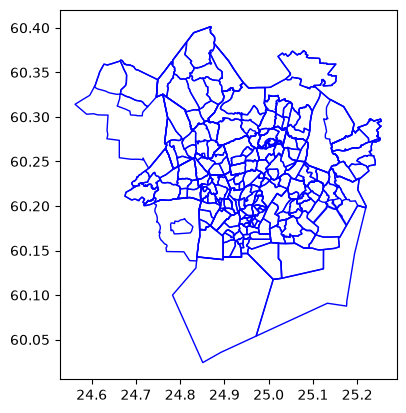
Pyrosm supports reading boundaries such as administrative borders from PBF using get_boundaries() -function.
By default, the function reads all "administrative" borders from the PBF. You can adjust the type of boundary that is parsed from PBF by modifying boundary_type -parameter. You can also search boundaries for specific name using name parameter:
from pyrosm import OSM
from pyrosm import get_data
fp = get_data("helsinki_region_pbf")
osm = OSM(fp)

# Read all boundaries using the default settings
boundaries = osm.get_boundaries()
boundaries.plot(facecolor="none", edgecolor="blue")
<Axes: >
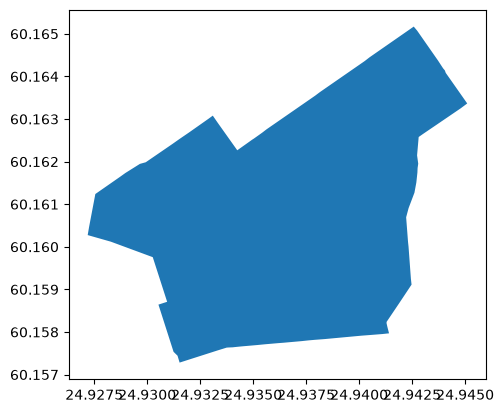
The following shows how to search a specific boundary using the name -parameter.
# Note: the following uses the same osm instance initialized above
selected_boundary = osm.get_boundaries(name="Punavuori")
selected_boundary.plot()
<Axes: >
The name search functionality supports partial text search, meaning that e.g. a query "vuori" would return all elements where the work "vuori" is included in the name tag (such as “Punavuori”):
# Use a partial name "vuori" to look for data
selected_boundary = osm.get_boundaries(name="vuori")
selected_boundary.plot()
<Axes: >
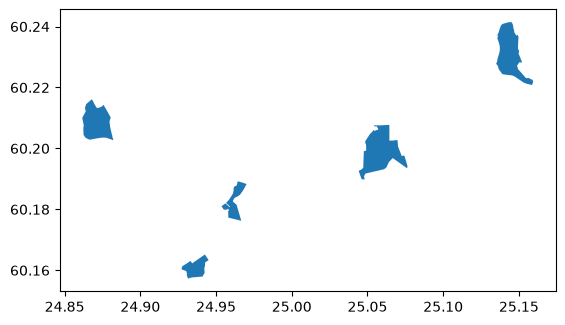
As we can see there were multiple boundaries in the data that included the word "vuori" in their name:
# Check all records that have the word "vuori" in their name
selected_boundary['name'].unique()
<ArrowStringArray>
['Punavuori', 'Munkkivuori', 'Roihuvuori', 'Mustavuori', 'Vilhonvuori']
Length: 5, dtype: str
It is also possible to search different kind of boundaries from the PBF.
Supported boundary types are:
"administrative(default)"national_park""political""postal_code""protected_area""aboriginal_lands""maritime""lot""parcel""tract""marker""all"
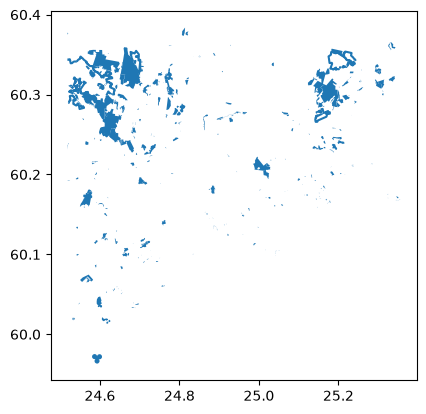
Let’s read all "protected_area" boundaries from the PBF:
# Note: the following uses the same osm instance initialized above
protected_areas = osm.get_boundaries(boundary_type="protected_area")
protected_areas.plot()
<Axes: >
Read OSM data with custom filter#
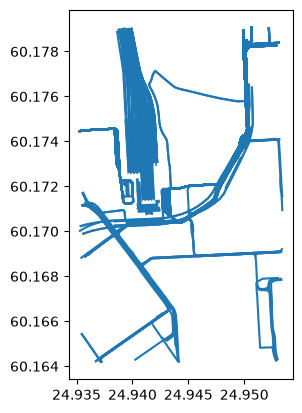
Pyrosm also allows making custom queries. For example, to parse all transit related OSM elements you can use following approach and create a custom filter combining multiple criteria:
from pyrosm import OSM
from pyrosm import get_data
fp = get_data("helsinki_pbf")

# Initialize the OSM parser object with test data from Helsinki
osm = OSM(fp)

# Test reading all transit related data (bus, trains, trams, metro etc.)
# Exclude nodes (not keeping stops, etc.)
routes = ["bus", "ferry", "railway", "subway", "train", "tram", "trolleybus"]
rails = ["tramway", "light_rail", "rail", "subway", "tram"]
bus = ['yes']
transit = osm.get_data_by_custom_criteria(custom_filter={
                                        'route': routes,
                                        'railway': rails,
                                        'bus': bus,
                                        'public_transport': True},
                                        # Keep data matching the criteria above
                                        filter_type="keep",
                                        # Do not keep nodes (point data)
                                        keep_nodes=False,
                                        keep_ways=True,
                                        keep_relations=True)
transit.plot()
<Axes: >
Further information on how to make customized queries is available in Parsing OSM data with custom queries.
Filtering data based on bounding box#
Quite often one might be needing to extract only a subset of the whole OSM PBF file covering e.g. a specific region. Pyrosm provides an easy way to filter even larger PBF files using a bounding box (rectangular shape) or a more complex geometric feature (e.g. a Polygon). In the following, we will go through the process of extracting a small sample from the whole PBF dataset for specific area of interest. We will use a data dump from Greater London region and extract data covering the Borough of Camden.
from pyrosm import OSM, get_data

# Download a dataset for Greater London (update if exists in the temp already)
fp = get_data("Greater London", update=True)
osm = OSM(fp)
# Read buildings (takes ~30 seconds)
buildings = osm.get_buildings()
buildings.head(2)
| addr:city | addr:country | addr:full | addr:housenumber | addr:housename | addr:postcode | addr:place | addr:street | name | ... | source | start_date | wikipedia | id | timestamp | version | tags | osm_type | geometry | changeset | ||
|---|---|---|---|---|---|---|---|---|---|---|---|---|---|---|---|---|---|---|---|---|---|
| 0 | NaN | NaN | NaN | NaN | Laurence House | NaN | NaN | NaN | NaN | NaN | ... | NaN | NaN | NaN | 2956186 | 1737425405 | 4 | NaN | way | POLYGON ((-0.02162 51.44472, -0.02168 51.44469... | NaN |
| 1 | London | NaN | NaN | NaN | Town Hall | SE6 4RU | NaN | Catford Broadway | NaN | Lewisham Town Hall | ... | NaN | NaN | NaN | 2956187 | 1757184258 | 13 | {"check_date":"2025-09-06","townhall:type":"to... | way | POLYGON ((-0.02108 51.44524, -0.02098 51.44515... | NaN |
2 rows × 42 columns
# Plot the buildings (will take awhile to plot)
buildings.plot()
<Axes: >
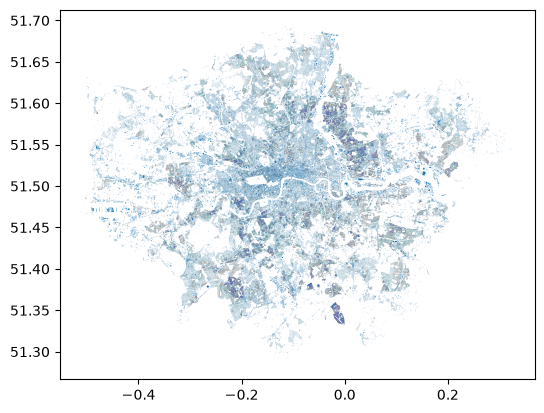
Now have parsed quite a few buildings from the Greater London area (~488,000).
Let’s filter the data spatially and include only buildings from the Borough of Camden. There are a couple of ways how you can pass the bounding box information to the Pyrosm:
You can specify the bounding box by a list of x- and y-coordinates (in decimal degrees) of the lower left corner and upper right corner of the geographical area (rectangular) that you want to keep as a result: [minx, miny, maxx, maxy]
You can also specify the bounding by passing a Shapely Polygon, MultiPolygon or LinearRing (all closed geometries supported) that can be used to filter the data with a more complex geographical features.
We will now use the boundary of the Camden Borough as our spatial filter. For finding the boundaries of Camden Borough is easy by utilizing the get_boundaries() -function and using the name parameter:
# Get the borough of Camden as our bounding box
bounding_box = osm.get_boundaries(name="London Borough of Camden")
bounding_box.plot()
<Axes: >
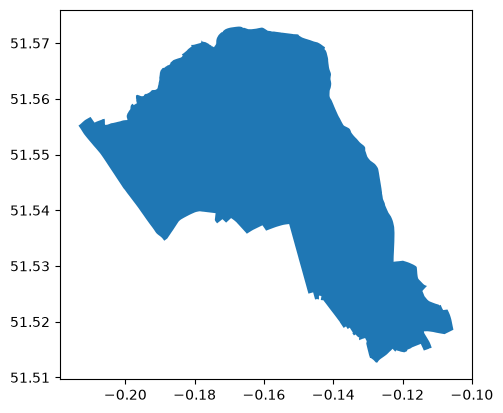
Now we can initialize the OSM reader with the given bounding box. It keeps the features that have at least one node inside the box, each with its whole geometry (see the FAQ on features at the edge of the box):
# Get the shapely geometry from GeoDataFrame
bbox_geom = bounding_box['geometry'].values[0]

# Initiliaze with bounding box
osm = OSM(fp, bounding_box=bbox_geom)
Now the bounding box information is stored in the attribute bounding_box that will be applied every time when an extract of the PBF (e.g. buildings, roads, etc.) is parsed:
# Bounding box is now stored as an attribute
osm.bounding_box

Finally, let’s read the buildings now from the Camden Borough using our bounding box filter. Notice, that you do not need to make any changes to the actual get_buildings() call, as the bounding box information is read automatically from the osm instance (osm.bounding_box).
# Retrieve buildings for Camden
camden = osm.get_buildings()
.../site-packages/pyrosm/engine/geoparquet.py:128: UserWarning: 1 relation(s) extend beyond the bounding box and were returned with incomplete geometry (some member ways fall outside the box). Pass complete_relations=True to OSM(...) to fetch their full member set.
  gdf = _assemble_chunk(
Okay, now we have data for the Camden area! Let’s take a look what it looks like on a map. Here, we will color the building based on how it has been tagged in the OSM:
# Let's plot the buildings and specify colors according the type of the building
ax = camden.plot(column="building", figsize=(12,12), legend=True, legend_kwds=dict(loc='upper left', ncol=3, bbox_to_anchor=(1, 1)))
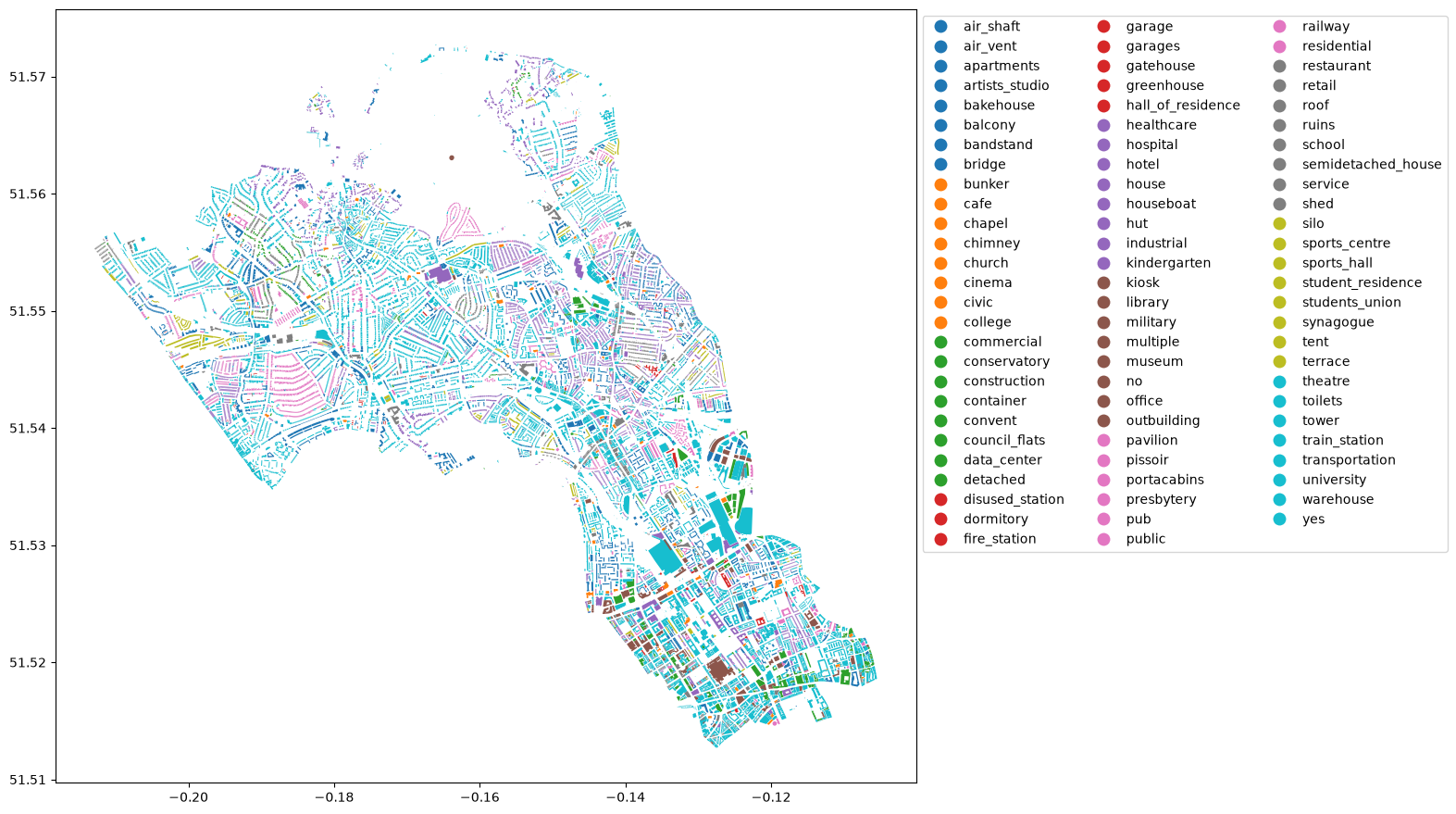
Great, now we can see that a subset of the data was taken according our bounding box coordinates.
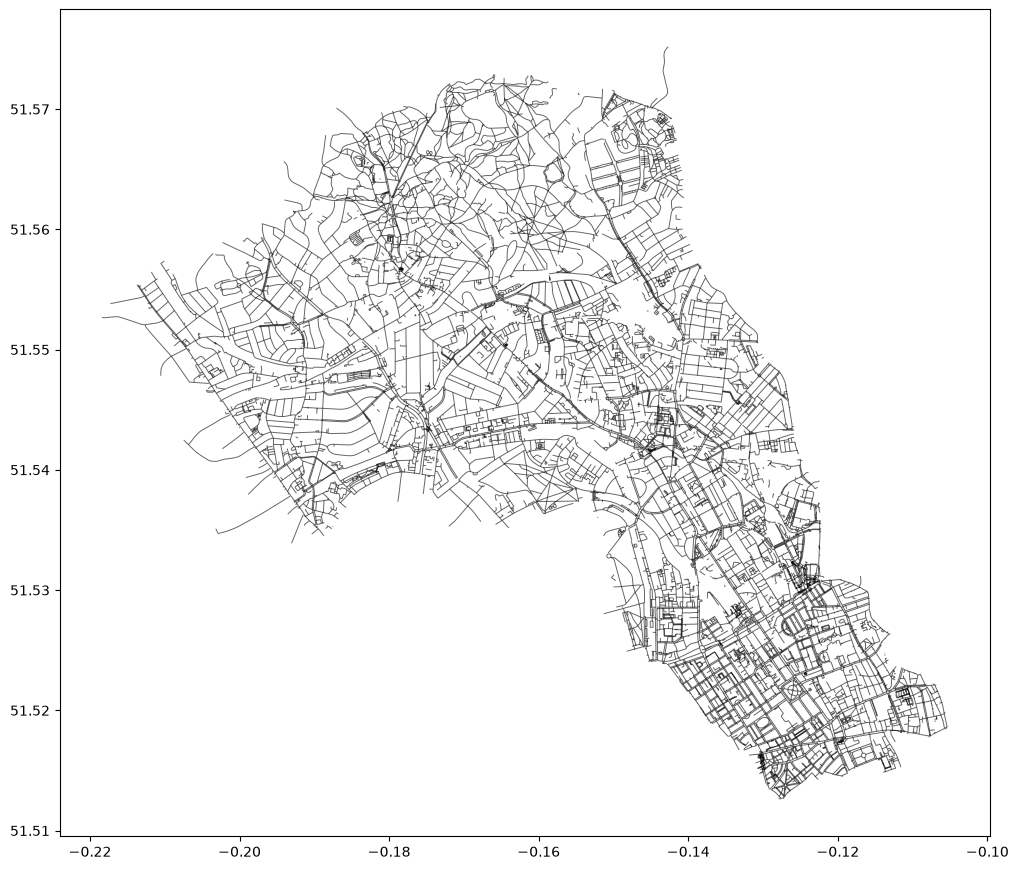
We can utilize the same bounding box for filtering other datasets as well, which can be handy. Let’s also filter the walkable roads from the same area:
# Apply the same bounding box filter and retrieve walking network
walk = osm.get_network("walking")
walk.plot(color="k", figsize=(12,12), lw=0.7, alpha=0.6)
<Axes: >
Read historical OSM data#
So far we have read data from regular .osm.pbf files, which contain a single snapshot of OpenStreetMap — the data as it looked at the moment the extract was made. OpenStreetMap also publishes history files (.osh.pbf), which keep every version of every element, together with the timestamp at which each version was edited. With a history file you can read the data as it looked at any chosen moment in time, which is useful for studying how an area has changed.
pyrosm recognises a history file automatically from its filename: as long as the path contains osh.pbf, the reader switches into history mode. You can then pass a timestamp to any of the get_* methods to choose the moment you want.
Note: History files for whole regions can be downloaded from Geofabrik, but those downloads require logging in with an OpenStreetMap account, so
pyrosmcannot fetch them for you. You pointpyrosmat a file you have downloaded yourself. For this example we use a small bundled sample of central Helsinki.
Let’s start by downloading the sample history file and initialising the reader:
from pyrosm import OSM, get_data

# Download a small sample history file for Helsinki
fp = get_data("helsinki_history_pbf")

# Initialise the reader; pyrosm detects the .osh.pbf file as a history file
osm = OSM(fp)
Now we can read the driving network as it looked at a chosen moment by passing a timestamp. The timestamp is interpreted in UTC and can be given either as a full date and time or as a date alone (in which case midnight at the start of that day is used):
# Read the driving network as it was at the start of 2019
net_2019 = osm.get_network(network_type="driving", timestamp="2019-01-01")
print(f"Edges in the 2019 snapshot: {len(net_2019)}")
Edges in the 2019 snapshot: 4058
For each element, pyrosm selects the most recent version edited up to the timestamp you gave. An element can therefore be older than the timestamp — its latest edit is kept — but versions edited after the timestamp are ignored. Elements that did not yet exist at that moment are left out entirely.
Let’s read a later snapshot of the same network and compare:
# Read the same network as it was at the start of 2021
net_2021 = osm.get_network(network_type="driving", timestamp="2021-01-01")
print(f"Edges in the 2021 snapshot: {len(net_2021)}")
Edges in the 2021 snapshot: 4146
Here we see how the network in this part of Helsinki has changed between the two dates: the 2019 snapshot has 4,058 edges and the 2021 snapshot has 4,146, as mappers added and edited roads over time. By varying the timestamp you can reconstruct the state of the data at any point covered by the history file.
Be careful: if you read from an
.osh.pbffile without giving atimestamp,pyrosmfalls back to the current UTC time and emits a warning, since there is no single “current” snapshot in a history file. It is important to understand what this fallback actually returns: it selects the most recent version of each element that is present in the file. A history file is a static download — it only contains edits up to the moment it was produced — so “the current time” does not give you today’s live OpenStreetMap data, but the latest state captured in that particular file. The bundled Helsinki sample, for example, was produced back in 2021, so reading it without atimestampreflects the situation in 2021, not the present day. Always pass an explicittimestampwhen you read historical data, both so that your results are reproducible and so that it is clear which moment in time they represent.
Reading large datasets with the out-of-core engine#
The OSM reader uses pyrosm’s out-of-core engine by default: it decodes the PBF in a streaming fashion and keeps peak memory bounded, so files up to whole countries can be read on a laptop. The in-memory engine (engine="in_memory") instead loads the whole PBF into memory once and serves every read of the reader from it. Every get_* method (and options such as custom_filter and bounding_box) works the same with both engines and returns the same data:
from pyrosm import OSM, get_data

fp = get_data("finland")

# The out-of-core engine is the default; decode in parallel
osm = OSM(fp, workers="auto")
buildings = osm.get_buildings()
buildings.shape
(4382534, 43)
Which engine should I use? The default out-of-core engine suits most reads, and especially medium to large extracts (e.g. larger cities to whole-country files), where reading everything into memory at once is impractical. The in-memory engine (engine="in_memory") can be faster for reading many layers of a small extract with one reader, since it parses the file once; history reads (.osh.pbf files or a timestamp) and write_pbf always use it.
Result caching. With the out-of-core engine, each layer’s result is written once to a GeoParquet file under a temporary directory, keyed by the source file and the read’s parameters. Reading the same layer again — even in a later Python session — reuses that cached file instead of re-decoding the PBF, so repeat reads are near-instant. Caching uses the optional pyarrow package; if pyarrow is not installed the out-of-core reader still works, but returns an in-memory GeoDataFrame without caching.
Reading in parallel. The out-of-core engine chooses how many threads decode a file by its size (workers="auto", the default): a single core for small files and several cores for large ones. Pass workers=N for a fixed count (capped at the number of CPU cores pyrosm may use), for example workers=1 to stay on one core when you run several reads side by side.
Reading in parallel means pyrosm splits the work across several threads that run at the same time, so a parallel read works the same in a notebook and in a standalone script (*.py). Setting the environment variable PYROSM_DECODE_BACKEND=processes makes pyrosm use helper processes instead, as earlier versions did; with it reads run on one core unless you pass workers, and the setting is deprecated and will be removed in a future release. On macOS and Windows, Python starts each helper process by re-running your script from the top, so with processes a parallel read from a script needs to sit inside an if __name__ == "__main__": block. This is a standard Python guard that runs the code only when the file is launched directly. Without it pyrosm falls back to reading on a single core and prints a warning:
from pyrosm import OSM, get_data

if __name__ == "__main__":
    osm = OSM(get_data("finland"), engine="out_of_core", workers="auto")
    buildings = osm.get_buildings()
    print(f"{len(buildings)} buildings")
4382534 buildings
Forgetting the guard is not fatal — pyrosm simply falls back to reading on a single core and prints a warning. The guard matters only when a read runs in parallel on helper processes (workers="auto" on a large file, or an explicit workers > 1) from a standalone script (e.g. my_analysis.py); the default read, which runs in one process with this setting, and interactive sessions such as running the code inside a Jupyter Notebook do not need a guard.
Managing the cache and downloaded files. The out-of-core engine keeps its result cache in a temporary directory, and get_data stores the PBF extracts it downloads there too. On large datasets these can take up a fair amount of disk space, so the OSM class gives you a few methods to inspect and clear them. List what is currently kept:
from pyrosm import OSM

# Cached out-of-core layer files (GeoParquet)
print("Cached layer files:", len(OSM.list_cache()))

# PBF extracts that get_data has downloaded
OSM.list_downloads()
Cached layer files: 13
['/tmp/pyrosm/Helsinki-sample.osh.pbf',
 '/tmp/pyrosm/Helsinki_region.osm.pbf',
 '/tmp/pyrosm/finland-latest.osm.pbf',
 '/tmp/pyrosm/greater-london-latest.osm.pbf']
To remove them, clear either just the files belonging to one source PBF or everything:
from pyrosm import get_data

fp = get_data("finland")

# Only the cached layers (GeoParquet files) of this source file
print("Cached files removed:", OSM.clear_cache(fp))

# Only this downloaded file
print("Downloaded files removed:", OSM.clear_downloads(fp))

# The whole result cache (GeoParquet files)
print("Cached files removed:", OSM.clear_cache())

# Every downloaded PBF
print("Downloaded files removed:", OSM.clear_downloads())
Cached files removed: 1
Downloaded files removed: 1
Cached files removed: 13
Downloaded files removed: 3
Each clear_* call returns how many files it removed, and the small sample datasets bundled with pyrosm are never touched.